
 en
en italiano
 čeština
 Deutsch
 français
 hrvatski
 magyar
 polski
 српски
 русский
 中文
中文 中文
中文 한국어
한국어 español
Barcode

Ribbon: Express Tools > Text > Create Barcode
Menu: Express > Text > Create Barcode
Toolbar: Express > Express - Text > Create Barcode
Keyboard: BARCODE; -BARCODE
The BARCODE command allows you to generate a barcode in your drawing.
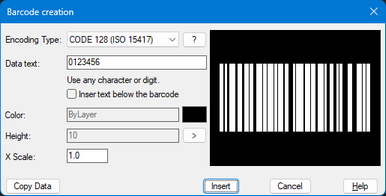
Encoding Type
The Encoding Type is selected from the drop-down menu and determines the barcode standard used. This choice defines which characters can be encoded (numbers, letters, special characters) and how the barcode will be structured.
Press the "?" button next to the menu to view a complete list of available encoding types along with their descriptions.
- CODE 128 (ISO 15417): high-density barcode that supports all 128 ASCII characters, ideal for alphanumeric data.
- CODE 39 (ISO 16388): it can encode uppercase
letters (A–Z), digits (0–9), and a few special characters
(such as
-,.,$,/,+,%, and space). - CODE 39 Extended: is an extension of the standard CODE 39 (ISO 16388) that allows encoding of all 128 ASCII characters, including lowercase letters, additional symbols, and control characters.
- EAN-8: is a short numeric barcode standard designed for small retail products. You enter only the first 7 digits, and the 8th digit is automatically calculated as a Mod10 checksum to ensure correct scanning
- EAN-13: is a widely used numeric barcode standard for retail products worldwide. You enter the first 12 digits, and the 13th digit is automatically calculated as a Mod10 checksum to ensure correct scanning
- EAN-14: is a 14-digit numeric barcode standard used primarily for logistics and transport units, such as shipping cases, cartons, and pallets. The first digit is the packaging indicator, the next 12 digits are based on the EAN-13 / UPC-12 article number, and the 14th digit is automatically calculated as a Mod10 checksum to ensure correct scanning. It is possible to enter between 1 and 13 digits manually; the system will automatically complete the code by adding leading zeros if necessary.
Data text
Enter the information that will be encoded into the barcode. This can include numbers, letters, or other supported characters, depending on the selected Encoding Type.
Insert text below the barcode
When selected, the text from the Data Text field will be displayed below the barcode. The barcode’s check digits are not yet added below the barcode. A dialog box appears explaining this option.
Color
Sets the color of the barcode. Default is ByLayer, click the square next to it to choose a different color.
Height
Sets the barcode’s height. It can only be defined by selecting two points on the drawing using the “>” button.
X Scale
Specifies the barcode’s horizontal scale factor.Copy Data
Click this button to select another barcode on the drawing and copy all its data. The copied data can still be edited before inserting the new barcode.How di I...
Create Arc-Aligned Text
Create Numbered or Alphabetical Markers