
 en
en italiano
 čeština
 Deutsch
 français
 hrvatski
 magyar
 polski
 српски
 русский
 中文
中文 中文
中文 한국어
한국어 español
Extended clip
Extended Clip

Ribbon: Express Tools > Modify > Extended Clip
Menu: Express > Modify > Extended Clip
Toolbar: Express > Express - Modify > Extended Clip
Keyboard: CLIPIT
The CLIPIT command clips Xrefs or images using lines and curves. It allows curved clipping of blocks, Xref drawings, images, and Wipeouts with polylines, circles, arcs, ellipses, or text.
PROCEDURE
- Do one of the following:
- Select Express > Modify > Extended Clip.
- Type CLIPIT and press Enter.
- Draw arcs, circles, and/or polylines to define clipping boundaries for blocks, xrefs, images and wipeouts.
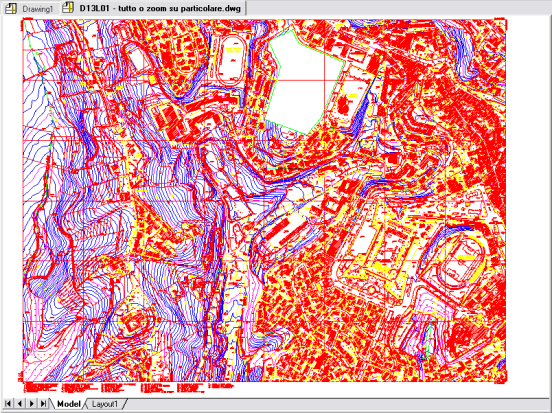
- Pick a polyline, circle, arc, ellipse or text object for clipping edge...
- Pick an image, a wipeout, or an xref/block to clip...
- Enter the maximum allowable error distance for arc segment resolution (e.g., 0.1)
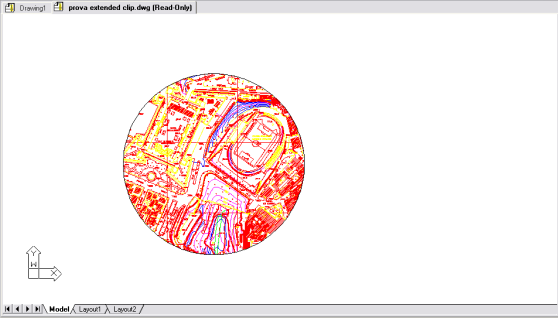
Clipit enables clipping to curved boundaries by approximating arc segments with a series of short straight segments. It allows you to specify the maximum distance between the midpoint of a segment and the arc, controlling the precision of the approximation.
Using a larger error value produces fewer segments and improves progeCAD performance, but arcs may appear less smooth. Conversely, a smaller value results in smoother arcs but slows down progeCAD during drawing regeneration.
NOTE: To improve performance, enter relatively large values while creating your drawing. When you are ready to plot, run CLIPIT again and specify a smaller error value for arc resolution.
How do I...