 en
en italiano
 čeština
 Deutsch
 français
 hrvatski
 magyar
 polski
 српски
 русский
 中文
中文 中文
中文 한국어
한국어 español
Creating diametral and radial dimensions
Diameter and radius dimensions annotate the radii and diameters of arcs and circles. You can optionally include centerlines or center marks.
To create a diametral dimension
1 Do one of the following to choose Diameter ( ):
):
On the ribbon, choose Home > Diameter (in Annotation) or Annotate > Diameter (in Dimensions).
On the menu, choose Dimensions > Diameter.
On the Dimensioning toolbar, click the Diameter tool.
Type dimdiameter and then press Enter.
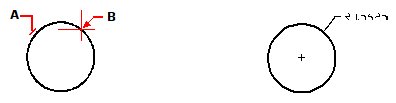
2 Select the arc or circle.
3 Specify the dimension line location.
|
|
||
|
Select the circle (A), and then specify the dimension line location (B). |
|
Result. |
To create a radial dimension
1 Do one of the following to choose Radius ( ):
):
On the ribbon, choose Home > Radius (in Annotation) or Annotate > Radius (in Dimensions).
On the menu, choose Dimensions > Radius.
On the Dimensioning toolbar, click the Radius tool.
Type dimradius and then press Enter.
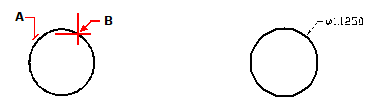
2 Select the arc or circle.
3 Specify the dimension line location.
|
|
||
|
Select the circle (A), and then specify the dimension line location (B). |
|
Result. |