
 en
en italiano
 čeština
 Deutsch
 français
 hrvatski
 magyar
 polski
 српски
 русский
 中文
中文 中文
中文 한국어
한국어 español
Change
( )
)
Keyboard: CHANGE
Alias: -CH
IntermediateChanges the location, size, color, elevation, layer, linetype, linetype scale, lineweight, and three-dimensional thickness of selected entities. When you select a line, you can also change the location of the endpoints of the line. When you select a circle, you can also change the diameter of the circle. When you select a ray or infinite line, you can change the angle and location. When you select a text entity, you can also change the insertion point, style, height, rotation angle, and the text of the entity. This command is especially useful for text entities.
NOTE For best results, change one entity at a time.
FILter/<Select entities to change>: Select the entity that you want to change. Choose FILter to filter the selection by properties.
Specify change point or [Properties]: Press Enter to change the properties of selected entities, which is the default. Or specify the change point for selected entities.
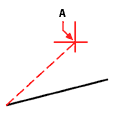
To change the endpoint of a line
|
|
|
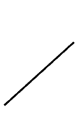
Result. |
Specify a new endpoint for the line. If you are drawing orthogonally (ORTHOGONAL is set to on) and you change a non-orthogonal endpoint, the changed endpoint is adjusted so that the line is orthogonal. That is, the line is parallel to the x- or y-axis.
NOTE You cannot use the Change command to change the endpoint of a polyline. Instead, use the Edit Polyline command.
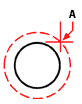
To change the radius of a circle or an arc
|
|
|
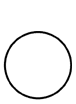
Result. |
Specify a new radius for the circle or arc.
To change a text entity
Specify a new location for the beginning of the text block. As you move the input device, the new location is displayed. Or to leave the insertion point unchanged, press Enter.
New style <default>: To keep the same text style, press Enter or right-click the mouse. Or enter the name of a different text style.
New height <value>: To keep the current text height, press Enter. Or enter a new height for the text.
New rotation angle <0>: To keep the current angle, press Enter. Or enter a new rotation angle of the text.
New text <This is sample text>: To keep the current text, press Enter. Or enter new text.
To change the properties of entities
Press Enter and use the Properties palette that displays to change the properties. Press P and then Enter to use the command bar to change the properties. Refer to the Properties palette topic for details about each property selection.
If you select more than one entity to change, and those entities have different properties (for example, different layer properties), the current value for the property you choose to change becomes "varies." When you change the properties for multiple entities, all entities in the selection set are changed.