
 en
en italiano
 čeština
 Deutsch
 français
 hrvatski
 magyar
 polski
 српски
 русский
 中文
中文 中文
中文 한국어
한국어 español
Raster Data Query
Raster Data Query
Ribbon: Raster Draw > Manage and View > Raster Data Query
Menu: Raster Draw > Raster Data Query
Toolbar: Raster Draw > Raster Data Query
Keyboard: RASTERDATAQUERY

Use Raster Data Query to open a dialog box that interactively tracks the cursor position and displays the color values of the image pixel at that point. Additional data values related to the pixel are shown depending on the image type. The dialog box is floating and can be moved.
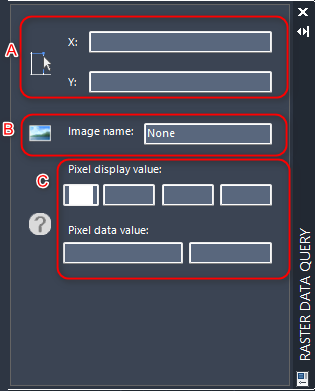
Section A
X and Y Indicate the X and Y position of the cursor.

Right-click for additional options Close (closes the dialog box) and Send to coordinates sends the cursor to the coordinates specified.
Section B
Image name: indicates the name of the currently inserted image.

Click to select an image.
Right-click for additional options: Close (closes the dialog box), Select image (selects a different image), Clear image (deselects the image), and Zoom to (zooms in on the selected image).
Section C
Pixel display value: Indicates the color values of the pixel under the cursor.
Pixel data value: Indicates other data values of the pixel under the cursor. The values vary based on the image type, such as 0-255 for indexed color or grayscale images.
How to...