
 en
en italiano
 čeština
 Deutsch
 français
 hrvatski
 magyar
 polski
 српски
 русский
 中文
中文 中文
中文 한국어
한국어 español
New image
New image
Ribbon: Raster Draw > Insert and Write > New
Menu: Raster Draw > New
Toolbar: Raster Draw > New
Keyboard: INEW

You can create a new blank image. To do this, first define an image frame, then set the properties in the New Image dialog box.
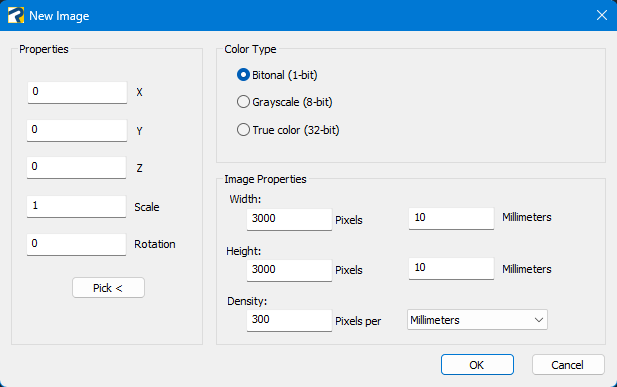
Properties
X,Y,Z: specify the X, Y, and Z coordinates of the lower-left corner of the image.
Scale: specifies a numerical scaling factor for the new image.
Rotation: specifies the rotation for the new image.
Pick: select two points on the progeCAD screen and specify the angle to define the properties mentioned above.
Color Type
Bitonal (1-bit): limits your image to two colors.
Grayscale (8-bit): limits your image to 256 shades of gray.
True Color (32-bit): limits your image to 16.7 million colors.
Image Properties
Width: shows the physical width of the image in pixels and in millimeter.
Height: shows the physical height of the image in pixels and in millimeter.
Density: shows the density (or resolution) of the image. This defines both the horizontal and vertical density.
NOTE: This should be set to the density value at which your images were scanned.
After creating a new image, you must save it in order to establish a link between the drawing and the image file.
How to...