en
en italiano
 čeština
 Deutsch
 français
 hrvatski
 magyar
 polski
 српски
 русский
 中文
中文 中文
中文 한국어
한국어 español
Fix Perspective Distortion
Ribbon: Raster Draw > Edit > Perspective Image Fix
Menu: Raster Draw > Perspective Image Fix
Toolbar: PCAD > Raster Draw Edit > Perspective Image Fix
Keyboard: IFIX

The IFIX command allows you to correct perspective distortions in your images in multiple ways. First, you can draw a reference polygon on points you know, and IFIX will automatically adjust the image, straightening skewed lines and aligning vertical and horizontal elements.
After the initial correction, you can refine the image using two tools:
Correct – lets you correct distortions in the image’s aspect ratio.
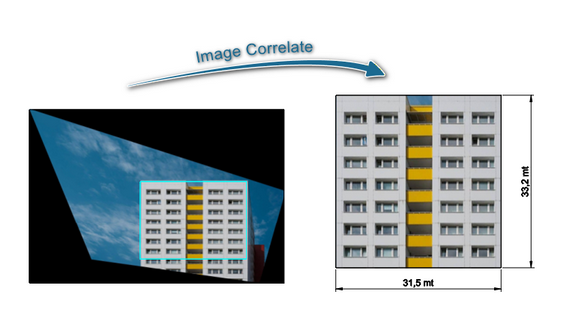
Correlate – allows you to adapt an inserted raster image to a vector object, ensuring proper alignment with existing geometry.
PROCEDURE:
Select the image by clicking the image frames.
Select the four points that define a reference polygon on the image. These points should correspond to positions you know (for example, corners of a rectangle or a known shape). This polygon helps IFIX understand the existing perspective distortion and how to correct it.
- Select one of the advanced options:
- Press Enter to confirm and apply the default perspective correction.
- Choose Correct to apply the IBIAS command to adjust the image’s aspect ratio and fix distortions precisely.
- Choose Correlate to apply the Image Correlate command to adapt the raster image to a vector object for proper alignment with the drawing.
Once a method is selected (or default correction applied), the image will be corrected according to the reference polygon and the chosen adjustments.
Example
In this example, we apply the IFIX command by selecting the four known points on the source image to define the reference polygon.
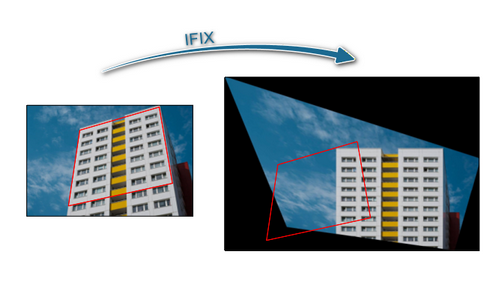
The image is now straight; however, its size is not yet correct. We therefore apply the Image Correlate command to adjust the aspect ratio and precisely correct any remaining distortions.