
 en
en italiano
 čeština
 Deutsch
 français
 hrvatski
 magyar
 polski
 српски
 русский
 中文
中文 中文
中文 한국어
한국어 español
Edit Image Window
Edit Image Window
Ribbon: Raster Draw > Edit > Edit > Edit Image Window
Menu: Raster Draw > Edit > Edit Image Window
Toolbar: PCAD > Raster Draw Edit > Edit Image Window
Keyboard: IWINDOW

Allow selection of multiple rectangular areas (windows) on a bitonal raster image and perform editing actions on them (move, rotate, erase, or mirror). Each window selects all pixels within its area. Modifications are applied directly to the image.
PROCEDURE
Select the image by clicking its image frame.
Select the area(s) you want to work on by specifying three points that define the base and height of a rectangular region. The first point corresponds to the lower-left corner, and the second point to the lower-right corner—together they define the base of the rectangle. The third point sets the height. You can select multiple areas in the same way. When finished, press Enter to display the list of actions available for the selected areas: Erase, Move, Rotate, and Mirror.
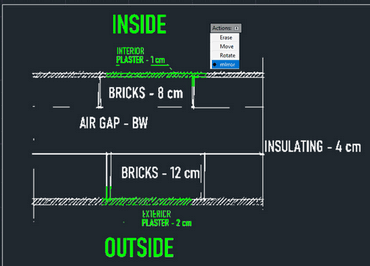
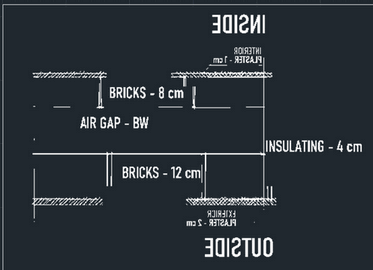
In this example, the image to be edited is shown on the left. The areas highlighted in green have been selected using the IWINDOW command, and the Mirror action has been applied. The result is shown on the right.
How to...