
 en
en italiano
 čeština
 Deutsch
 français
 hrvatski
 magyar
 polski
 српски
 русский
 中文
中文 中文
中文 한국어
한국어 español
Image Correlate
Image Correlate
Ribbon: Raster Draw > Correlate > Image Correlate
Menu: Raster Draw > Image Correlate
Toolbar: Raster Draw > Image Correlate
Keyboard: IMATCH

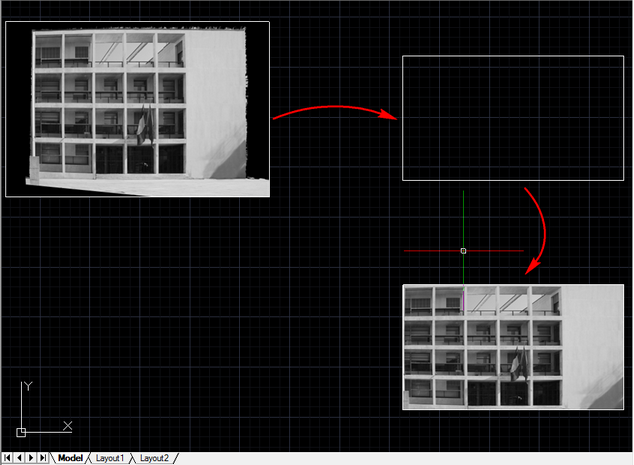
Allows you to adapt an inserted raster image to a vector object.
PROCEDURE:
- Select the image by clicking the image frames. After this you have two possibilities:
- Select the first source point on the image
- Select the second source point
- Specify the destination for the first source point
- Specify the destination for the second source point
- Choose if you want to move image background (yes or not)
The result is a rotated-scaled image.
- Choose R(ectangle) option
- Select points on the raster image (source) to form a rectangle (lower left point, lower right point and upper left point)
- Select points on the vectorial drawing (destination) to form a rectangle (lower left point, lower right point and upper left point)
- Choose if you want to crop the image (yes or not)
- Choose if you want to move image background (yes or not)
The result is a cropped-rotated-scaled image.
Note: When an image is modified using any tool from the Raster Draw module, changes made to the original image file may affect any other drawings that reference the same image. For more information, refer to Effect of Editing an Image.
How to...