
 en
en italiano
 čeština
 Deutsch
 français
 hrvatski
 magyar
 polski
 српски
 русский
 中文
中文 中文
中文 한국어
한국어 español
Tool palette add blocks
Right click on Tool palette: Add blocks
This function allows you to easily add multiple blocks to the Tool palette.
Please remember that you need to create a main .DWG file containing all block definitions for the Tool Palette, and use it to populate the palette’s custom pages. If you delete or change the path of the source blocks file, the related blocks will no longer be usable.
PROCEDURE:
- Run the Add Blocks command by right-clicking on the Tool Palette.
- Select the destination page of the palette, ore create a new page
- From the checks list, choose which blocks you want to import
- Press [Load] button to end the procedure and load the blocks
DIALOG PARAMETERS:
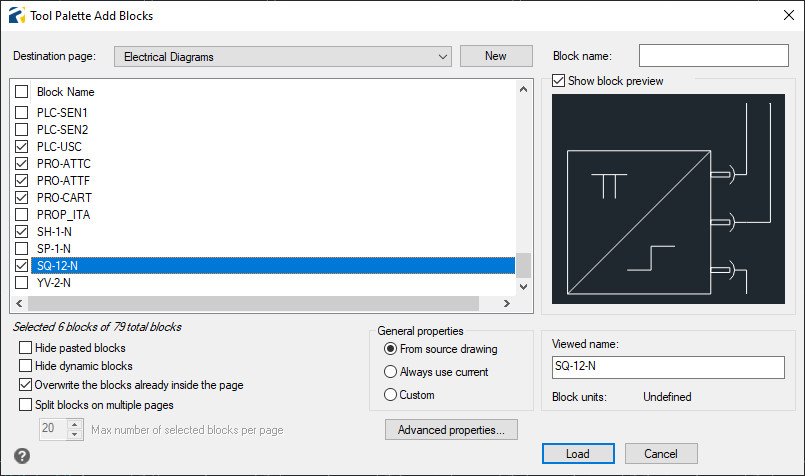
Destination page: List of the existing pages (pages are the sections of the tool palette).
[New] button: Allows to create a new page in the tool palette.
Block name: Allow to filter the block list by name or portion of name (here you can use * special character for searching).
Block list: Here are reported all the block definitions related the current drawing. It's possible to manually choose one by one the desired items, or all items using the check near "Block Name" title.
Hide pasted blocks: Hides the blocks definitions generated by "Copy/Paste as block".
Hide dynamics blocks: Hides the dynamic blocks.
Overwrite the blocks already inside the page: Allows to decide if existing blocks with same name for selected page are overwriting or ignored.
Split blocks on multiple pages: Allows to set a blocks number limit for page. New pages will be created with the same name of the choose one, plus an automatic incremental number.
Viewed name: Allows to change the visualized block name in the Tool palette.
General properties: It's possible to decide the properties blocks for insertion.
From source drawing: Are used the original properties of the block.
Always use current: Are forced the current properties at the insertion time.
Custom: It's possible to force customized properties for insertion.