
 en
en italiano
 čeština
 Deutsch
 français
 hrvatski
 magyar
 polski
 српски
 русский
 中文
中文 中文
中文 한국어
한국어 español
Cloud - Backup procedure
Toolbar: PCAD > Cloud > Backup
to Cloud ( )
)
Menu: File > Backup to Cloud
Keyboard: SAVECLOUD
The SAVECLOUD command allows you to create a *.pcloud archive
containing a drawing and all the associated files.
This archive is saved in the folder corresponding to the chosen Cloud service.
When synchronized, all computers linked to your active Cloud account can
access the archive.
Keep in mind that a backup on the Cloud is only a safety copy of your drawing, which can also be accessed from different workstations connected to the same Cloud account, providing an additional option. The Cloud should not be considered a replacement for your own drawing archive.
Backup of a drawing
- Before proceeding to Backup, make sure that all the modifications made to your drawing have been saved by using the standard Save or Save as commands.
- Execute the Backup to Cloud command from the File menu or from the relative Toolbar.
- Select a Cloud service from those available.
ATTENTION: Only cloud services whose corresponding applications are installed on your PC will be available.
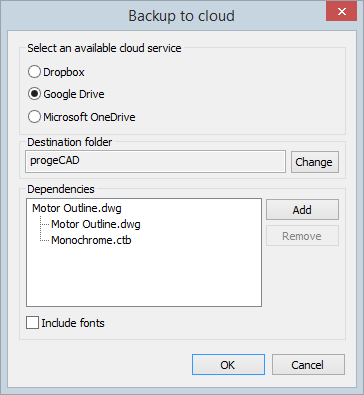
- Select the local folder corresponding to the Cloud you have chosen. (It is possible to organize your backup in folders and subfolders. For more details see the next section Select a destination folder).
- The Dependencies section allows to add associated files if such available to the *.pcloud archive. Raster images and xrefs are automatically uploaded in this section. You can also decide if to include all Font definition files used in the DWG drawing.
- Complete the procedure clicking on the OK button.
At this point you will have your project saved in the local folder of
the respective Cloud service with the following syntax: NAMEFILE.pcloud.
The synchronization of the folder will go in accordance with your Cloud
settings.
Select a destination folder.
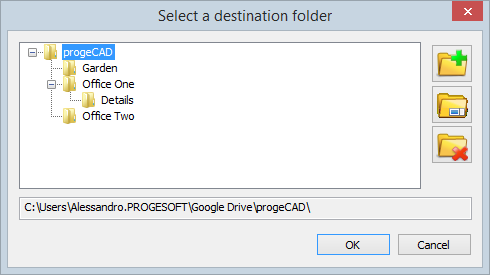
The following three functions allow to create, rename
and delete folders and subfolders, starting from the main folder
of the Cloud service you have chosen.
The same structure will be transmitted onto the Cloud and consequently
available to all the computers connected to it through synchronization.
 Use to create
a new folder. By selecting an existing folder, a subfolder is created.
Use to create
a new folder. By selecting an existing folder, a subfolder is created.
 Use to rename
the selected folder.
Use to rename
the selected folder.
 Use to delete
the selected folder.
Use to delete
the selected folder.
Tell me about...