
 en
en italiano
 čeština
 Deutsch
 français
 hrvatski
 magyar
 polski
 српски
 русский
 中文
中文 中文
中文 한국어
한국어 español
Multi Plot
App Menu: Print > Multi Plot
Ribbon: Output > Plot > Multi Plot
Menu: File > Multi Plot > Multi Plot
Keyboard: MULTIPLOT
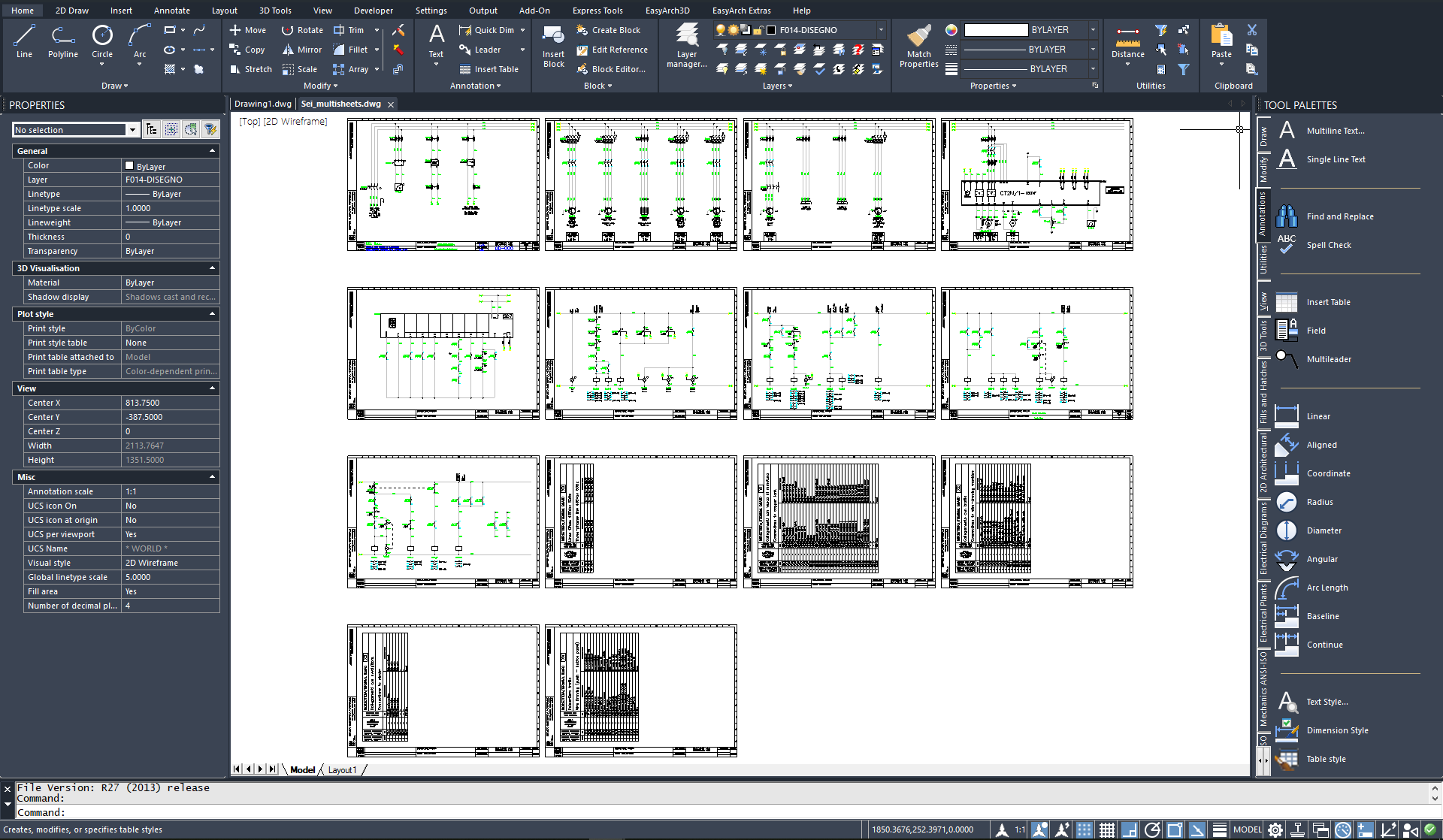
This function allows you to print a portion of a drawing defined by
a polygon or a polygonal block. It is useful for automating multiple print
operations on drawings that contain many title blocks in the same space.
A dedicated button is also available directly in the main Print dialog.
DIALOG FUNCTIONS/OPTIONS:
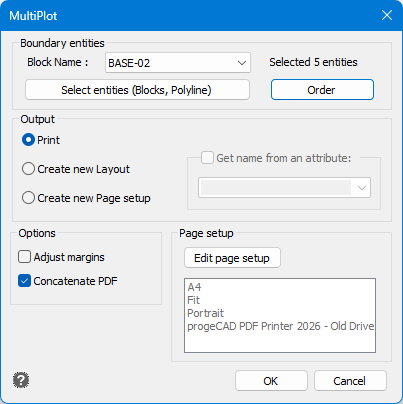
BOUNDARY ENTITIES:
Block name: Allows you to select an existing block definition.
Select entities (Blocks, polyline): Through this button it is possible
to select Blocks or Polylines to use as the print area, directly from
the drawing.
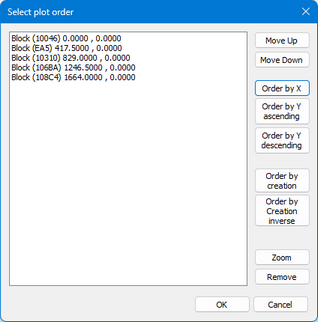
Order: Press this button to open the Select plot order dialog, which allows you to modify the print order.
OUTPUT:
Print: Allows you to print the selected areas using the current
PAGE SETUP.
Create new Layout: Generates new Layouts, one for any singular selected
object.
Create new Page setup:Allows you to generate new Page Setup by suing
the selected object
Get name from attribute: If a block with attributes is selected,
it is possible to choose one attribute to use its name.
OPTIONS:
Adjust margins: Optimize the margins of the selected areas.
Concatenate PDF: By selecting the DWGtoPDF.PC3 printer, it allows
you to generate a multi-page PDF including all the pages selected for
printing.
PAGE SETUP:
The current Page Setup is shown. The Edit page setup button allows
you to edit these settings.
ATTENTION - Please note that if is used the PROGECAD PDF PRINTER with Concatenate PDF options turned ON, it's necessary to choose two or more areas.