
 en
en italiano
 čeština
 Deutsch
 français
 hrvatski
 magyar
 polski
 српски
 русский
 中文
中文 中文
中文 한국어
한국어 español
Dimension Grips
Dimension grips allow you to quickly modify dimension objects directly in the drawing area without opening dialog boxes.
When a dimension is selected, grip points appear at key locations. These grips can be used to adjust geometry, extension lines, text position, and other dimension parameters interactively. Available grip functions adjust according to the type of dimension.
Editing Dimension Geometry Using Grips
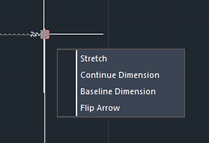
Hover over the grip at the end of a dimension line to quickly access the following options:
Stretch: allows you to adjust the extension lines, moving the dimension line closer to or farther from the object. You can also specify a different base point or copy the line via command prompts.
Continue Dimension: allows you to continue the dimension using the DIMCONTINUE command.
Baseline Dimension: allows you to create a baseline dimension with the DIMBASELINE command.
Flip Arrow: allows you to flip the direction of the dimension arrowhead with the AIDIMFLIPARROW command.
For Multileaders only, grips provide the following additional options:
- Add/Remove Vertex
- Lengthen landing
- Add leader
Editing Dimension Text Using Grips
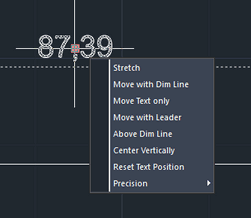
Place the cursor over a dimension text grip to quickly reach the available functions:
Stretch:
- Text on the dimension line: stretch moves the dimension line closer to or farther from the object. You can use the command line prompts to select a different base point or to copy the dimension line.
- Text placed away from the dimension line (with or without a leader): Stretch moves the text while leaving the dimension line unchanged.
- Move with Dim Line: places the text on the dimension line and shifts the line closer to or farther from the object being dimensioned, without prompting for additional input.
- Move Text Only: allows you to reposition the dimension text while keeping the dimension line fixed.
- Move with Leader: allows you to position the dimension text with a leader line pointing to the dimension line.
- Above Dim Line: allows you to position the dimension text above the dimension line, or to the left for vertical dimensions.
- Center Vertically: allows you to position the dimension text so the dimension line runs through its vertical center.
- Reset Text Position: allows you to return the dimension text to its default position according to the active dimension style.
- Precision: allows you to adjust the dimensional accuracy by specifying how many decimal places are shown.
- For Multileaders only, grips provide the following additional options:
Justification
Left Attachment
Right Attachment