
 en
en italiano
 čeština
 Deutsch
 français
 hrvatski
 magyar
 polski
 српски
 русский
 中文
中文 中文
中文 한국어
한국어 español
Configure Graphics Performance
Status Bar:
Switch Graphics Device 
Ribbon: Settings > Performance > Graphic Performance Settings
Menu: Tools > Graphic Performance Settings
Keyboard: HWCONFIG, OPTIONS (Performance tab), OPTIONSNEW (Performance tab)
Allows you to customize the graphics hardware settings. This can be
useful for resolving certain graphics issues, for example on machines
with older graphics cards or those with only integrated graphics.
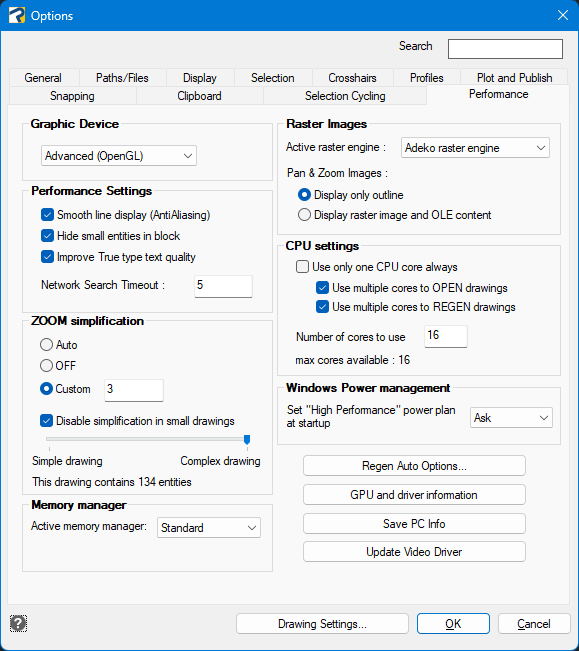
Graphic Device
Specify Graphics Device and enable/disable hardware acceleration. You can choose between the following options:
- Experimental (OpenGL ES): hardware acceleration ON. This graphics system is mainly useful for users working in 3D design, as it supports AutoCAD® 3D visual styles (e.g., X-ray, Sketchy) and glow-style selection preview. However, it requires more memory, which may impact performance.
- Advanced (OpenGL): hardware acceleration ON. This is the default system. It is optimized for users working in 2D and/or with large drawings. It does not support advanced visual styles or glow-style selection preview.
- Basic (Software): hardware acceleration OFF. This mode is useful for resolving severe graphics issues, especially on older PCs with outdated or integrated graphics cards.
Note: when changing the graphics system, it's recommended to close large drawings and restart the program.
Performance Settings
Smooth lines display (AntiAliasing): removes the jagged effect on the display of diagonal lines and curved edges in 2D Wireframe mode. (Controlled by the LINESSMOOTHING system variable).
Note: this
function is not recommended for all graphic cards, as it requires a significant
amount of memory and processing capability.
Hide small entities in block: improves display performance by hiding small objects inside blocks at high zoom levels, when they wouldn't be distinguishable anyway. The objects reappear when you zoom in.
Improve True type text quality: improves text quality using TTF fonts, but increases memory usage and the time required to open and regenerate drawings.
Network Search Timeout: sets the maximum search time (in seconds) for external references. This helps improve drawing performance when some references are missing. (Controlled by the NETWORKSEARCHTIMEOUT system variable.)
ZOOM simplification
In this section, you can manage the value of the ZOOMDETAIL system variable. It controls the level of hidden detail during dynamic zoom, pan, and rotation to improve performance on complex drawings.
You can choose between the following options:
- AUTO: allows progeCAD to automatically adjust the zoom and pan simplification detail. You can also enable this by setting the system variable ZOOMDETAIL to -1.
- OFF: disables zoom and pan simplification. You can also disable this by setting the system variable ZOOMDETAIL to 0. All objects remain visible during zoom, pan, and rotation operations.
- Custom: allows you to set a custom value for zoom and pan simplification. By default, the value is set to 3.
It is also possible to choose whether to disable simplification in small drawings. Below the checkbox, there is a slider that allows you to set the threshold for what is considered a "small drawing", based on the number of entities.
Memory manager
This section allows you to select the active memory manager.
Standard: provides basic memory management.
Enhanced: enables advanced optimizations for improved performance.
Raster Images
Active Raster Engine: allows you to select the engine used to manage images. You can choose from the following options:
Adeko Raster Engine: this is the default configuration. It supports georeferenced images (such as ECW) and is generally the most suitable option for common image formats.
Teigha Engine: faster than the Adeko engine, but it does not support georeferenced images.
Adaptive Mode: progeCAD automatically selects the most suitable engine configuration. (Adeko or Teigha). The engine is chosen based on the first drawing opened in the current session. To change the configuration, close and reopen progeCAD with a drawing containing a different image type.
Pan & Zoom Images: in this section, you can configure how raster images and OLE objects are displayed during Zoom and Pan operations (controlled by the RTDISPLAY system variable). This setting helps optimize performance in drawings containing many images or embedded objects. You can choose from the following options:
- Display only outline.
- Display raster image and OLE content.
CPU settings
In this
section, you can manage the use of multiple CPU cores. By default, the
program utilizes the maximum available processing power.
Use only one CPU cores always: select this option if you are experiencing serious problems or unexpected crashes while editing drawings.
Use multiple cores to OPEN drawings: enables progeCAD to use multiple CPU cores when opening files, reducing loading time.
Use multiple cores to REGEN drawings: allows progeCAD to use multiple CPU cores during drawing regeneration to improve performance.
Number of cores to use: it is possible to specify the number of CPU cores to be used by progeCAD during drawing opening and/or regeneration. Modify this setting if you notice any stability issues.
The related system variable is MULTICORE.
max cores available: displays the number of available cores on the PC.
Windows Power management
In this section, you can choose whether progeCAD should switch to the Windows High Performance power plan when the program starts.
Available options:
- Ask: allows you to choose whether or not to
change the current power plan each time progeCAD starts. (default)
Useful for users who want to decide at startup whether to prioritize performance or battery life.
Note: The prompt will not be displayed if the Windows "High Performance" power plan is already active. - Always: automatically sets the High Performance plan at startup. Useful for users who need maximum performance, but it reduces battery life. Note: When progeCAD is closed, the original power plan is restored.
- Never: leaves the current power plan unchanged. Useful if you're using a laptop with limited battery life and want to extend working time by enabling power saving. Note: progeCAD and other software may run with slightly reduced performance.
Buttons
Regen Auto Options: opens the "Automatic regeneration settings" dialog box where you can configure the automatic regeneration options.
GPU and driver information: opens the GPU and driver information window to view details about your graphics hardware. Useful for checking the graphics card model configured for progeCAD, as well as the version and date of the installed drivers.
Note: Outdated drivers may affect program stability. It is recommended to keep them up to date.
Save PC Info: saves a TXT file containing detailed system information about the machine in use.
Update Video Driver: redirects to the GPU manufacturer's website, where you can download and install the latest video drivers. Related to "GPU and driver information"