
 en
en italiano
 čeština
 Deutsch
 français
 hrvatski
 magyar
 polski
 српски
 русский
 中文
中文 中文
中文 한국어
한국어 español
Compare

Ribbon: View > Review > DWG Compare; Application menu > Drawing Utilities > DWG Compare
Menu: Tools > DWG Compare
Keyboard: COMPARE
This command allows you to compare a selected drawing file with the one currently open, highlighting the differences. Changes are marked in different colors and framed with rectangles, making it easy to identify additions or deletions.
PROCEDURE:
- Run the COMPARE command.
- A dialog box opens, allowing you to select the drawing file to compare with the current one.
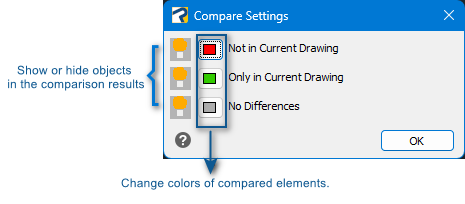
- The differences are displayed relative to the current drawing. By default, red indicates elements that are not in the current drawing, green indicates elements that are only in the current drawing, and grey indicates no differences.
When the comparison view appears, a Compare toolbar is also displayed, providing options to manage and review the detected changes.


The Settings button opens a dialog to customize the colors used to highlight elements that are only in the current drawing, elements not in the current drawing, and elements that are identical.

Toggles the visibility of differences in the current drawing.
 Zooms into the previous
or next change set in the current drawing
Zooms into the previous
or next change set in the current drawing
 Starts the COMPAREIMPORT command, which
imports objects from the comparison drawing into the current drawing.
When selecting objects at the prompt, all objects can be selected, but
only those not already in the current drawing will be imported. This ensures
that only objects unique to the comparison drawing are added.
Starts the COMPAREIMPORT command, which
imports objects from the comparison drawing into the current drawing.
When selecting objects at the prompt, all objects can be selected, but
only those not already in the current drawing will be imported. This ensures
that only objects unique to the comparison drawing are added.

Ends the current comparison session.
Note - The Compare command does not support the following objects: Images, non-DWG Underlays, OLE Objects, Cameras, Proxy entities, Hatches, Leaders and MLeaders, point clouds, and Feature Control Frames .