
 en
en italiano
 čeština
 Deutsch
 français
 hrvatski
 magyar
 polski
 српски
 русский
 中文
中文 中文
中文 한국어
한국어 español
Advanced Blocks - Actions
Advanced Blocks - Actions BACTIONTOOL (Command)
Using Actions
Actions are associated to Parameters and determine how the entities of the Advanced Block definition behave when you manipulate the Advanced Block reference in the drawing.
When you want to add an action to an Advanced Block definition, it is necessary to specify the following:
The Parameter to which you want to apply the action
Note: You can apply actions to Parameters only. You cannot apply actions to Advanced Block entities.
A main point on the specified Parameter that allows you to manipulate the Block reference.
A selection set that comprises the entities that move or change when the action occurs in the Block reference.
Actions display their icon plus this bolt
icon  .
Clicking the action icon displays the selection set.
.
Clicking the action icon displays the selection set.
Parameters that do not have associated
actions display this icon  .
.
You can apply multiple actions to a Parameter, and the software groups all actions into an Activity toolbar.
When you hover the mouse cursor over an action icon, it highlights the following:
- The related Parameter
- The Parameter grip point that lets you perform the action
- The stretch frame (For stretch actions only). In a Block reference, moving the grip point affects only the entities in the stretch frame.
Note: The action icon does not appear in the Block reference.
Example:
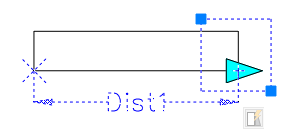
When hovering over a Stretch action, the following is highlighted:
Linear Parameter
Parameter grip point that lets you perform the action
Activity icon (in this example, Stretch)
Stretch frame
The software groups actions according to the Parameters that can use them.
Block Editor actions and associated Parameters:
Activity |
Icon |
Transformation |
Available Parameters |
Move |
|
Applies translation |
Point, Linear, Polar, XY |
Scale |
|
Applies scaling |
Linear, Polar, XY |
Stretch |
|
Stretches entities using stretch points from the specified area |
Point, Linear, Polar, XY |
Polar Stretch |
|
Applies stretching and rotation |
Polar |
Rotate |
|
Applies rotation |
Rotation |
Flip |
|
Applies Flip transformation |
Flip |
Array |
|
Creates entities across Parameter directions with the specified offset. For an XY Parameter, the array uses the X and Y directions. |
Linear, Polar, XY |
Lookup |
|
Applies the value set to other Parameters |
Lookup
|


BACTIONTOOL command is used to apply actions to Parameters in an Advanced Block definition.
To apply an action to an Advanced Block Parameter:
Edit BACTIONTOOL at the command prompt.
Specify the action:
Activity Applied to Current Advanced Block Definition |
Available Parameters |
Array |
Linear, Polar, XY |
Lookup |
Lookup |
Flip |
Flip |
Move |
Point, Linear, Polar, XY |
Rotate |
Rotation |
Scale |
Linear, Polar, XY |
Stretch |
Point, Linear, Polar, XY |
Polar Stretch |
Polar |
In the graphics area, specify the Parameter to which to apply the action. The Parameters available for selection depend on the type of action specified, as indicated in the table above.
Follow the command prompts.