
 en
en italiano
 čeština
 Deutsch
 français
 hrvatski
 magyar
 polski
 српски
 русский
 中文
中文 中文
中文 한국어
한국어 español
BIM Option

Ribbon: Add-On > Import > BIM Options; Insert > BIM files > BIM Options
Toolbar: BIM files > BIM Options
Menu: Add-On > BIM files > BIM Options; Insert > BIM files > BIM Options
Keyboard: BIMOPTIONS
This command allows you to set the BIM file management options.
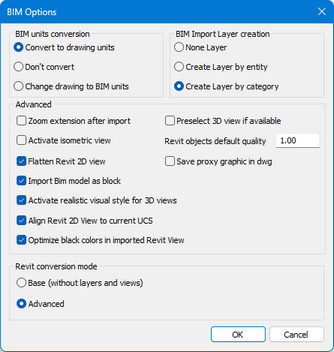
BIM units conversion
Convert to drawing units: the units of the underlay are converted to the units of the drawing (INSUNITS system variable is used; if INSUNITS is set to 0, then INSUNITSDEFTARGET is used)
Don't convert: no units are converted. The underlay is inserted with 1:1 units, even if the units are different.
Change drawing to BIM units: the units of the drawing are converted to the units of underlay. INSUNITS is changed to the corresponding value and BIMUNITS is set to 0 so that all subsequent underlays use the units of the drawing.
BIM Import Layer creation
None Layer: all entities are created on active layer.
Create Layer by entity: entities are placed on layer by entity name.
Create Layer by category: entities are placed on layer by object type.
Advanced
Zoom extension after import: after import activate zoom extension.
Activate isometric view: after import activate isometric NW view.
Flatten Revit 2D view: flatten imported Revit 2D View.
Import Bim model as block: import the selected Bim model as a block.
Activate realistic visual style for 3D view: after import activate realistic visual style to show materials if provided.
Aligne Revit 2D View to current UCS: align imported Revit 2D View to current UCS.
Optimize black colors in imported Revit View: optimize black colors in importer Revit View.
Preselect 3D view if available: preselect the Revit 3D view, if available, in the dialog for choosing the view to import.
Revit objects default quality: determines the smoothness (level of detail) of curves in BIM underlays created from .rvt files.
Save proxy graphic in dwg: value that determines whether to save or not proxy graphic in the drawing. (BIMPROXYGRAPHICS system variable).
Revit conversion mode
Base (without layers and views): base Revit conversion mode.
Advanced: Advanced Revit conversion mode (possibility to choose which Revit view to import).
Tell me about...