
 en
en italiano
 čeština
 Deutsch
 français
 hrvatski
 magyar
 polski
 српски
 русский
 中文
中文 中文
中文 한국어
한국어 español
Array (command line version)
Array (command line version)
Keyboard: -ARRAY or ARRAY for dialog box version
Alias: -AR
Creates multiple copies of entities in one of two symmetrical patterns: rectangular (rows and columns) or polar (circular). Similar to the 3D Array command, except that entities are arrayed in two-dimensional space. A polar array copies entities in a circumference around a center point that you specify; the entities can be rotated (all facing the center point) or not.
FILter/<Select entities to array>: Select the entities you want to array, and then right-click the mouse or press Enter. Choose FILter to filter the selection by properties.
Type of array: Choose whether you want to create a polar or rectangular array.
To create a linear array along a path, use the Divide or Measure commands, with the Block option. To make an irregular array, use the Copy command with the Multiple option.
To create a rectangular array
Entities are arrayed in a rectangular pattern in the positive direction of the x- and y-axis. To array entities in the negative direction, enter a negative value for the row or column offset. A rectangular array must have at least two rows or two columns.
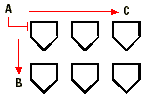
- Select the entity you want to array.
- Specify the number of rows in the rectangular array.
- Specify the number of columns in the rectangular array.
Choose Rectangular.
Number of rows in the array <1>: Enter the number of rows you want in the array.
Number of columns <1>: Enter the number of columns you want in the array.
NOTE You must have at least two rows or at least two columns. If you specify 1 as the number for both rows and columns, the program exits the Array command.
Vertical distance between rows, or spacing rectangle: Enter the amount of space you want between each row in the array. Or, pick two points on the screen that represents the vertical and horizontal distance between rows and columns.
Horizontal distance between columns: Enter the amount of space you want between each column in the array.
NOTE If either the vertical or horizontal distance is zero, the program does not draw entities in that direction, even if you specify the number of entities to draw. If the vertical and horizontal distances are both zero, the program does not draw an array at all.
To create a polar array
|
|
|
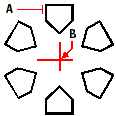
- Select the entity you want to array.
- Specify the center point of the array. The graphic shows entities rotated around the center point.
Choose Polar.
Base/Center of polar array: Specify the center point around which you want the entities arrayed. Or, choose Base to specify a new base point for the array, then select the base point.
ENTER to specify angle between items /<Number of items to array>: To specify the number of items you want to create in the array, enter a number (including one for the original selection). To specify the angle, press Enter.
Angle to array (+ for ccw, - for cw) <360>: To array entities in a full circle (360°), the default setting, press Enter. To array entities in a counterclockwise direction, enter a positive value. To array entities in a clockwise direction, enter a negative value. The polar array begins at 0 degrees (default = east). Angle between items: Enter the degree of the angle between the items arrayed.
Rotate entities around the array? No/<Yes>: To accept Yes, the default selection, press Enter. To array entities without rotating them, choose No.
Tell me about...
Array (dialog box version)